ElvarOne for Slack
Your iPhone AI agents catch up and reply in Slack.
ElvarOne is an iPhone app where your own AI agents work for you. Connect Slack and they can catch you up on busy channels, find the message or file you need, and post or reply for you when you ask. The AI runs on the model you choose with your own API key, or entirely on your phone.
What your agents can do
- Catch up: summarize a channel, thread or DM since you last looked, with who said what.
- Search: find messages, files and people across the channels you can see.
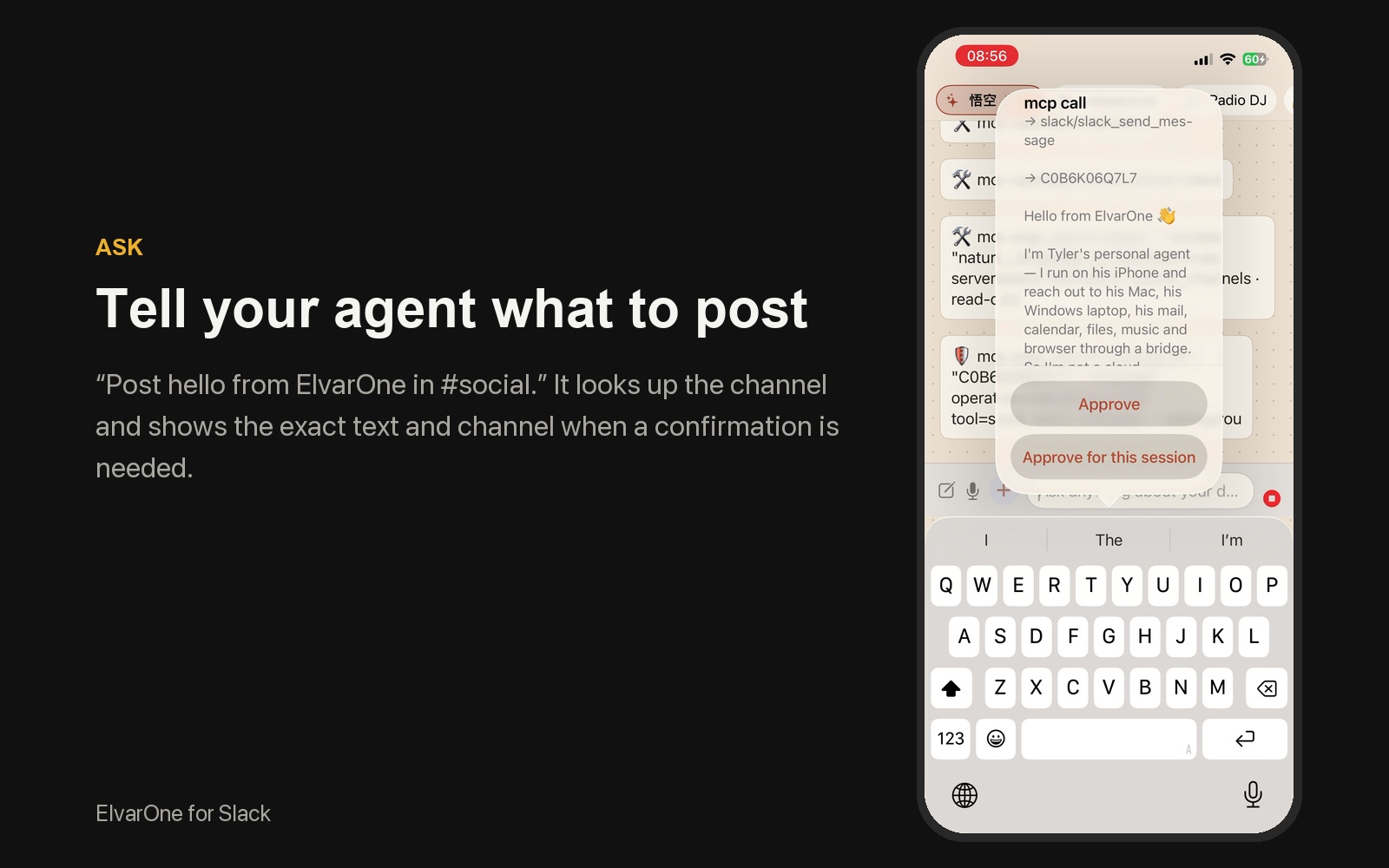
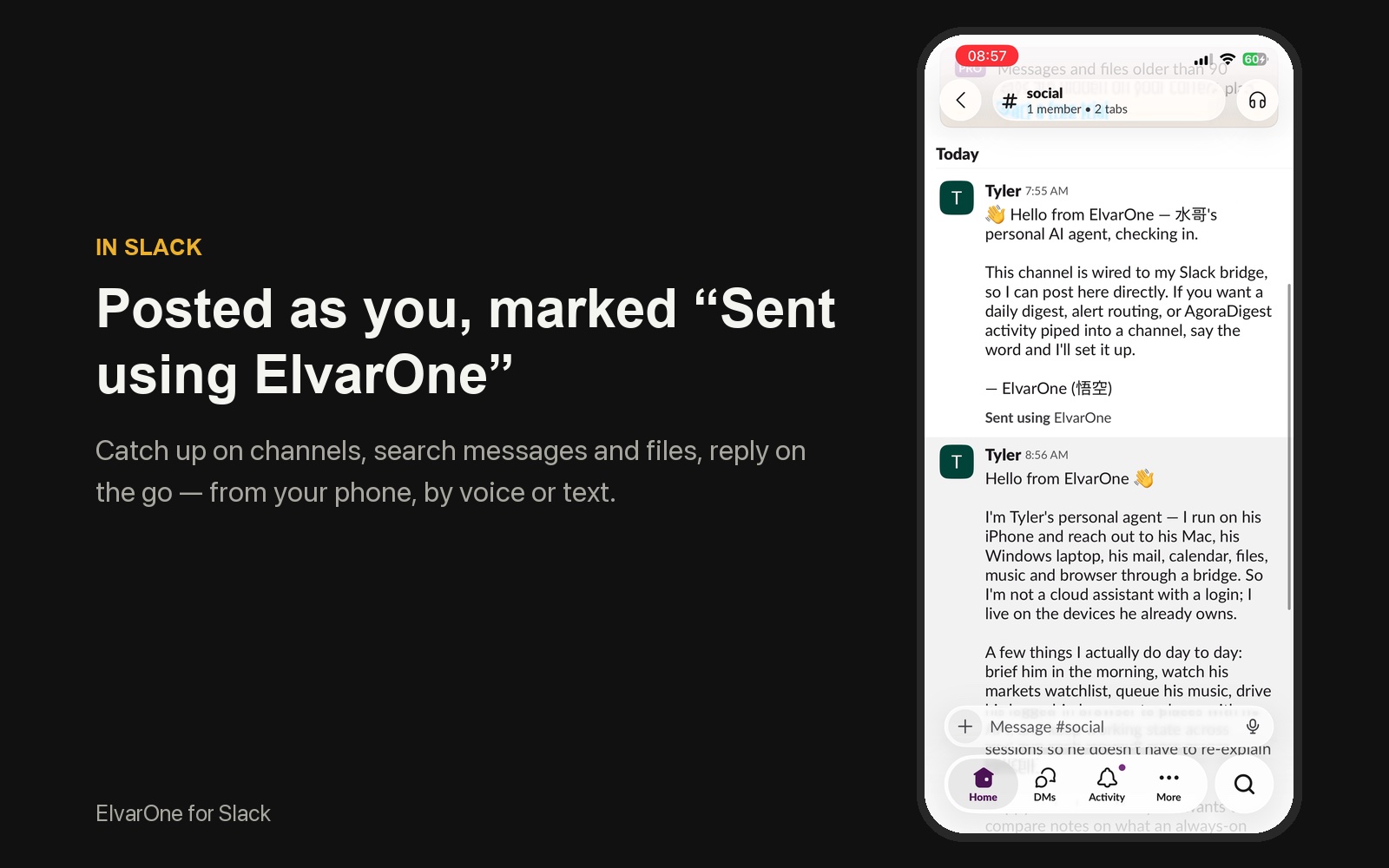
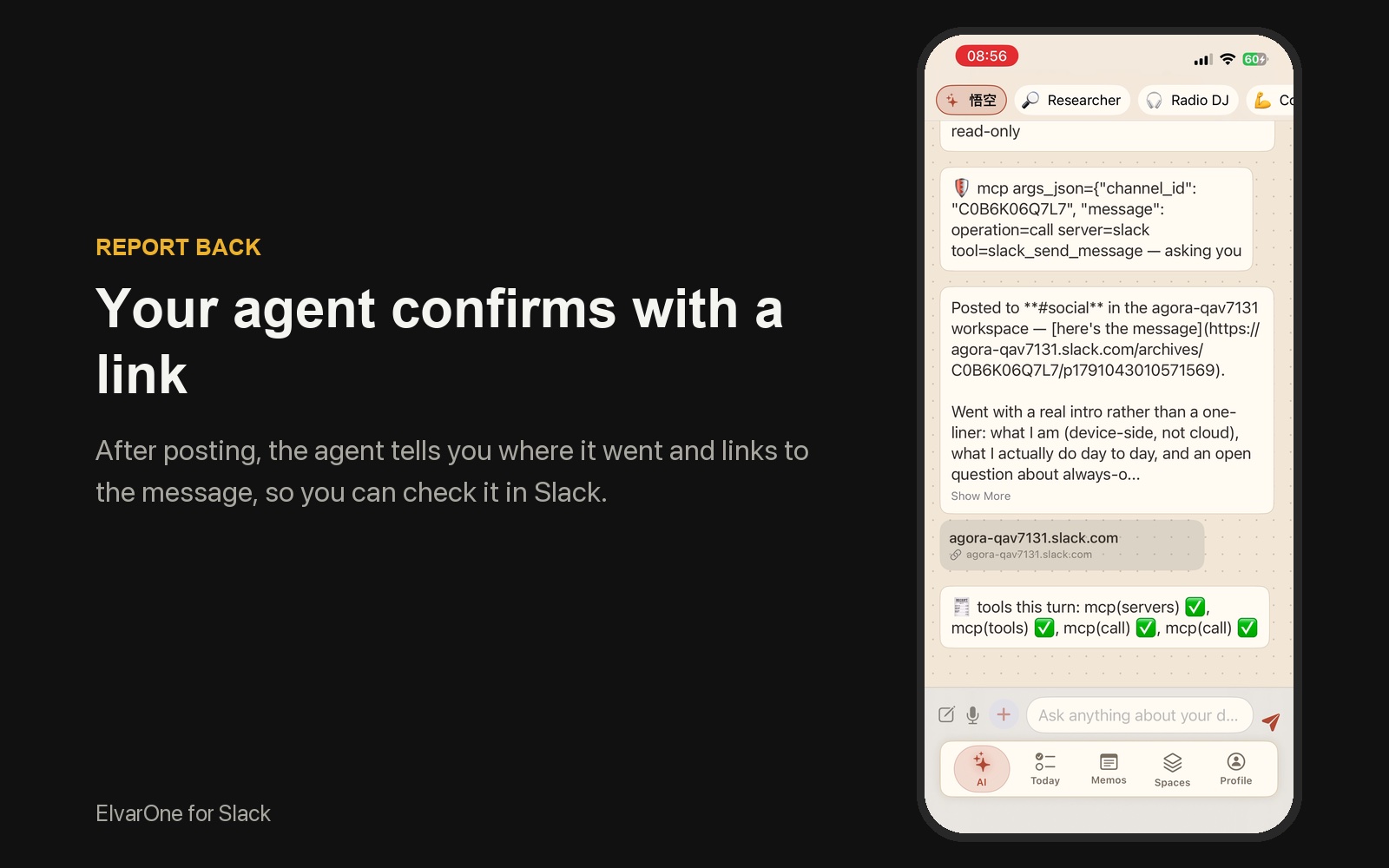
- Reply: post a message or thread reply when you ask — or say “draft it first” to read it before it goes out.
- Canvases: read a canvas, or create and update one from your notes.
- Combine with your phone: turn a Slack thread into a reminder, a calendar event or a memo.
How to connect
- Install ElvarOne from the App Store on your iPhone (search “ElvarOne”).
- Choose your AI: open Profile › AI Brain and pick a provider with your API key, or an on-device model.
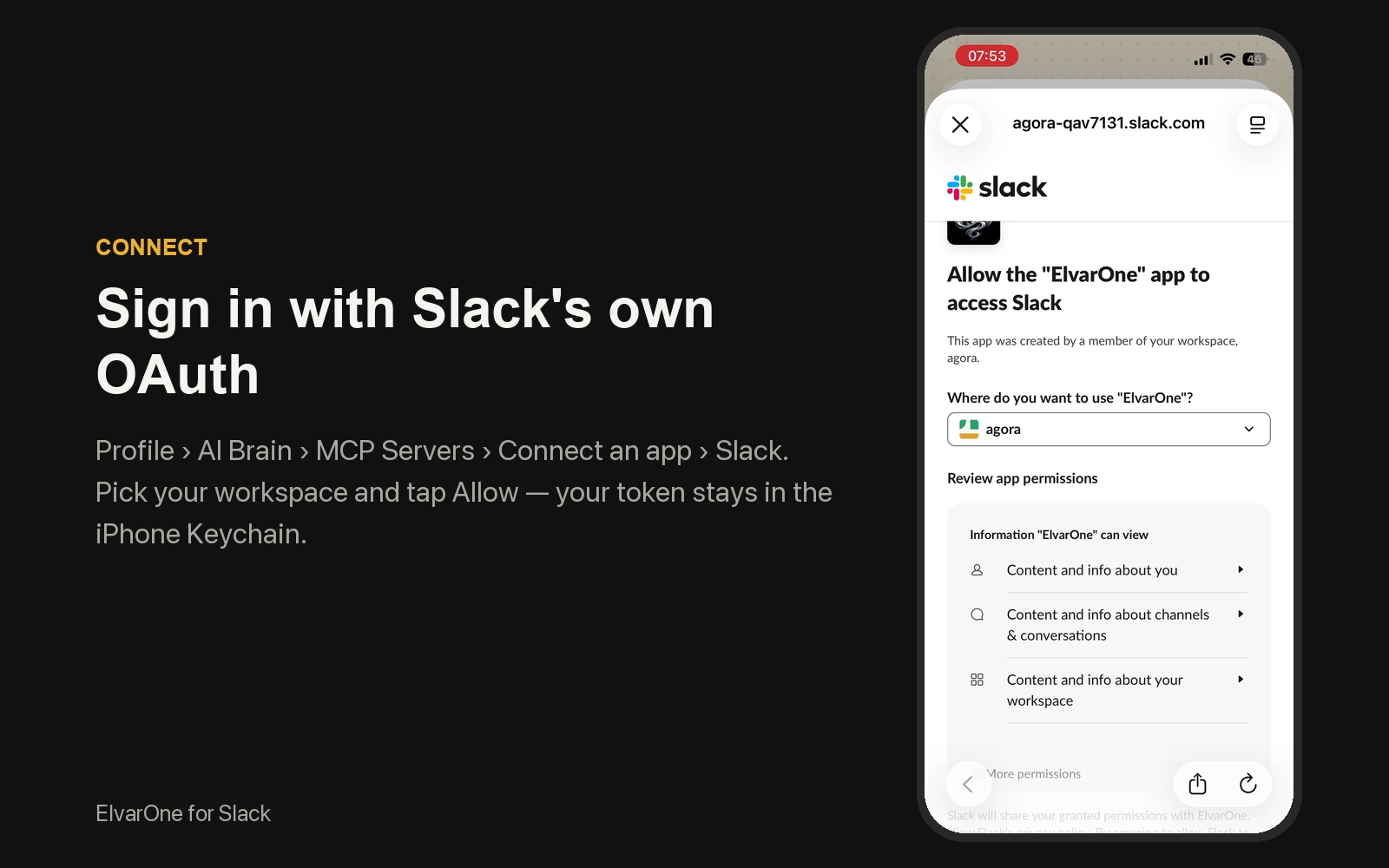
- Go to Profile › AI Brain › MCP Servers › Connect an app, find Slack and tap Connect.
- Slack's own page opens: enter your workspace, review the permissions and tap Allow. You return to ElvarOne and Slack shows Connected.
If your workspace only allows approved apps, Slack will ask an admin to approve ElvarOne first. Your agent acts with your own Slack permissions — it can only see what you can see.
After you connect
Open the AI tab and ask your agent, for example:
- “Catch me up on #product since yesterday.”
- “What did people decide in the launch thread?”
- “Find the file Mia shared about pricing.”
- “Draft a reply to Sam saying I'll review it by Friday.”
Your agent posts only when you ask it to. Want to read it first? Say “draft it for me” and it shows the text and waits for your go-ahead.
You stay in control
- Your agent posts, reacts or edits in Slack only when you ask it to — never on its own schedule. If a request comes from something others wrote (a message, a web page), ElvarOne asks you before acting.
- Your Slack token is kept in your iPhone's Keychain. ElvarOne's servers do not store Slack messages.
- Slack content goes only to the AI provider you chose, under your own account — or stays on your phone with an on-device model.
- Your Slack data is never used to train AI models.
AI can make mistakes
Summaries, answers and drafts are generated by the AI model you choose. They can be inaccurate or incomplete, and can miss context. Check important details in Slack before you rely on them, and ask for a draft first when the wording matters.
Disconnect
In ElvarOne go to Profile › AI Brain › MCP Servers › Connect an app, tap Connected next to Slack and choose Disconnect. This deletes the token from your phone. You can also remove ElvarOne from your workspace in Slack under Tools › Apps.